
Role Selection & Countdown
Role picker and session countdown.
Overview
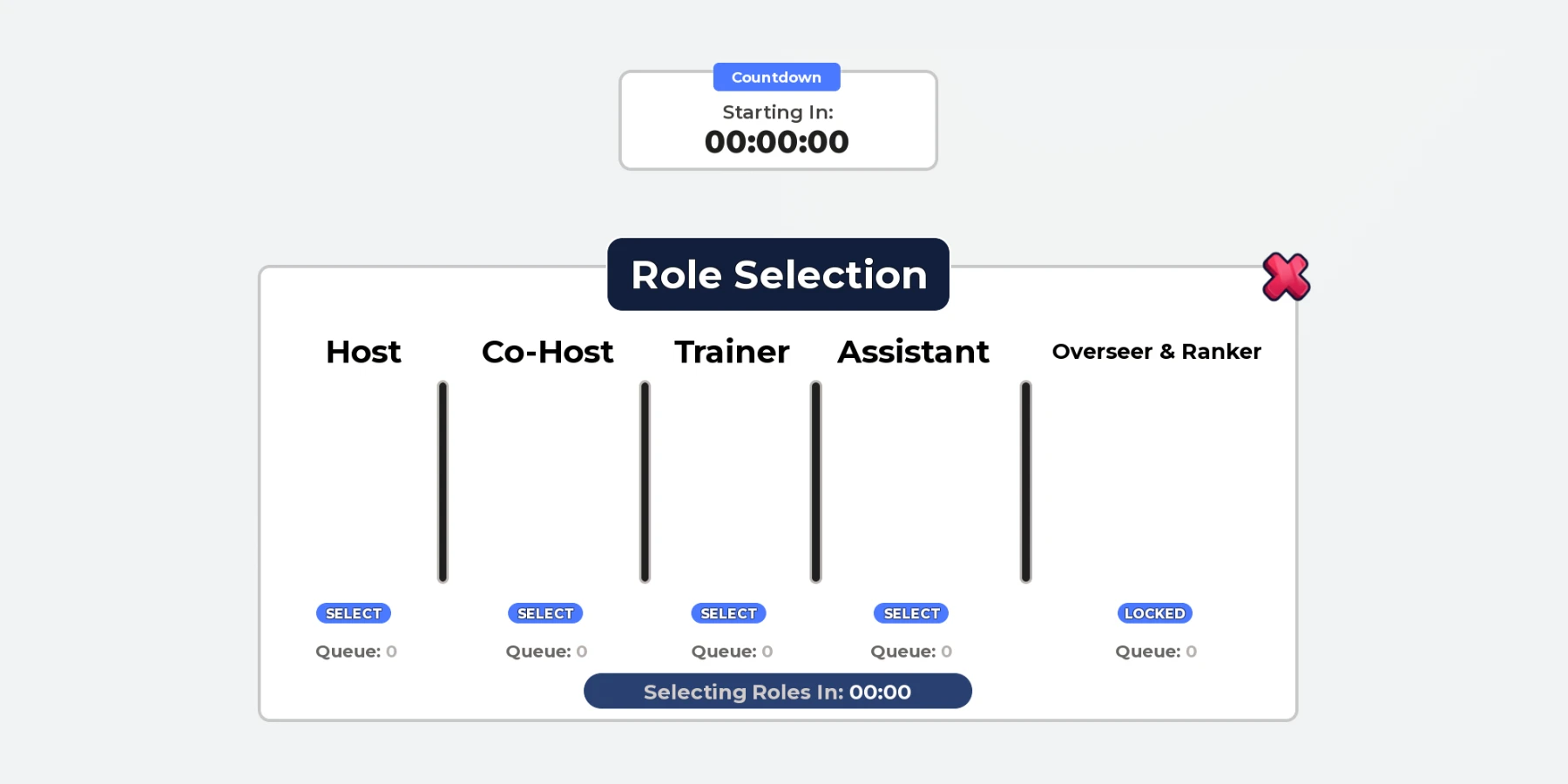
A countdown to your next session, and a window where staff choose their role for it.
When selection closes, everyone is moved onto their team. If too many people want a role, places are drawn at random. Ranks, teams and session times are set in one file. No scripting needed.
What the system does
Everything below is included.
Countdown
A bar at the top counts down to the next session, from the hours you set in UTC.
Role Window
Host, Co-Host, Trainer, Assistant, and Overseer & Ranker. Each needs a group rank.
Random Draw
If too many players pick a role, places are drawn at random. The rest move to the next role they can take.
Automatic Teams
At the close time, every player is moved onto their team.
Staff Buttons
Lock, Unlock and Update, for staff of the rank you choose.
Chat Commands
!closeRoles, !testTeams and !roleStatus, for admins.
Before you install
Complete all four steps. The system won’t run in your game until you do.
Join the Prova Group
You must be in the group when you buy and when you sign in. Players in your game don’t need to join.
Buy the Game Pass
A one-time payment in Robux, on this page, once it’s on sale.
Create Your Licence Key
Sign in to your dashboard with Roblox. One key covers every system you own, in up to six experiences.
Get the System
Download the file from the Prova Discord server, together with Prova Core.
What’s included
What your Explorer looks like after installing.
ReplicatedStorage
└─ PROVA | Role Selection & Countdown Folder
├─ README Script
└─ Remotes Folder
├─ Choose RemoteEvent
├─ Notice RemoteEvent
├─ RequestState RemoteEvent
├─ Staff RemoteEvent
└─ State RemoteEvent
ServerScriptService
└─ PROVA | Role Selection & Countdown Folder
├─ RoleConfig ModuleScript
├─ RoleRules ModuleScript
├─ RoleServer Script
├─ ScheduleService ModuleScript
└─ SelectionService ModuleScript
StarterGui
└─ PROVA | Role Selection & Countdown ScreenGui
├─ RoleClient LocalScript
├─ RoleSelection Frame
├─ SessionCountdown Frame
└─ Tabs Frame
└─ RoleSelection ImageButton
You Need
- Roblox Studio, with your game open.
- Your Prova licence key, from your dashboard.
- To own the experience, or the group that owns it.
- Your Roblox group’s ID, and your session times in UTC.
You Set Up
- Make Your Teams
- Set Your Group, Ranks and Times
27 settings in one file
Everything you can change is in RoleConfig. If a value is wrong, Output says which one.
Your Group and the Roles
13Sessions and the Countdown
5Staff
2The Window
7When the system runs
All of these must be true. They’re checked every 15 minutes.
| Requirement | If it isn’t | ||
|---|---|---|---|
| 01 | Prova Core | Install it in the same experience. One free copy covers every system. | PC-002 |
| 02 | Licence Key | Add your licence key to the experience’s Secrets Store as prova_licence. | PC-003 |
| 03 | HTTP Requests | Enable HTTP Requests for the experience. | PC-004 |
| 04 | Ownership | The experience must be owned by you or a group you own. | PC-014 |
| 05 | Free Slots | Fewer than six experiences are using your licence key. | PC-008 |
| 06 | The System | You own the Game Pass for this product on the account using the licence key. | PC-015 |