
Staff System Messages
Staff announcements as Roblox system presets.
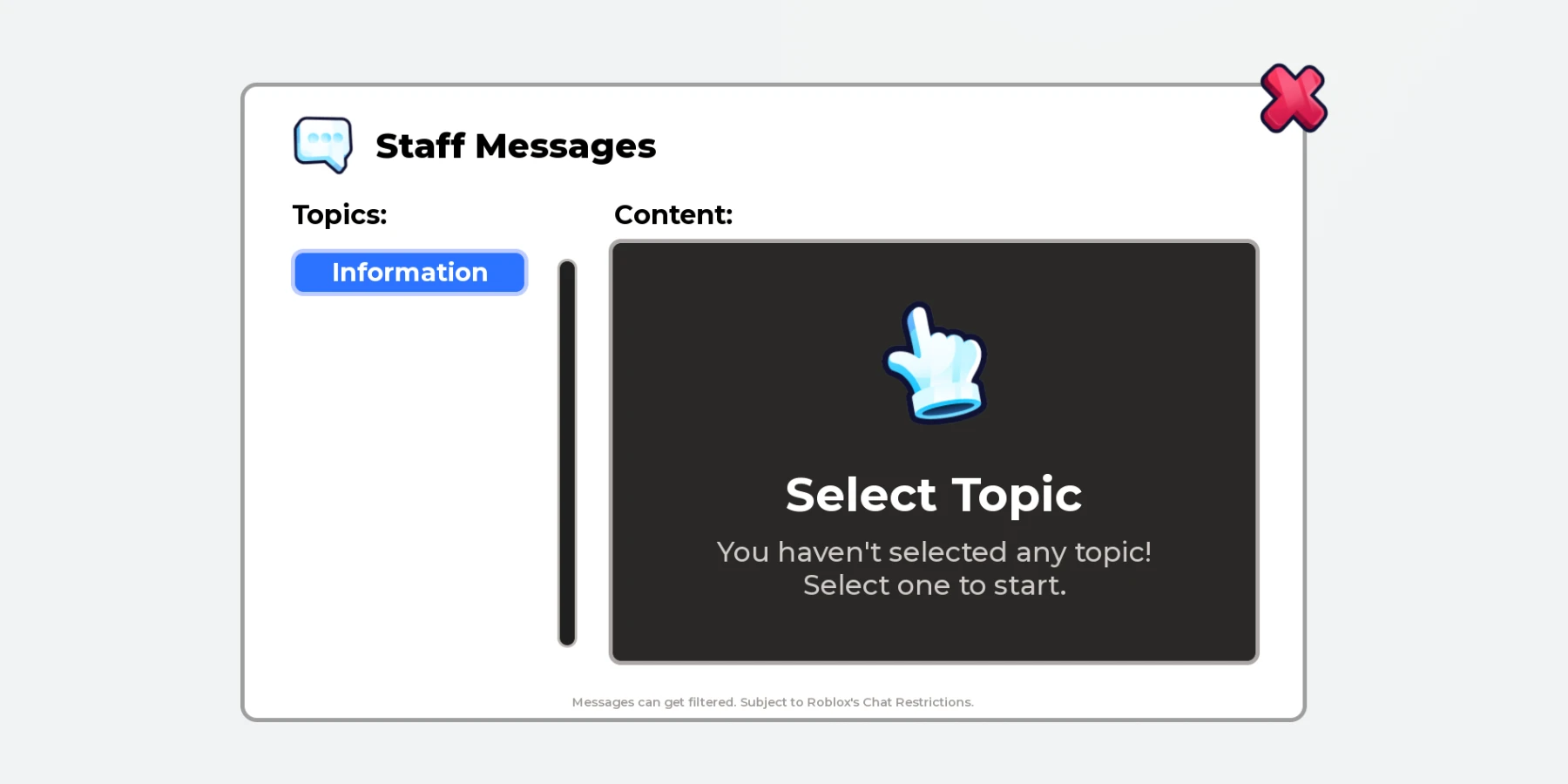
Overview
Staff announcements as Roblox system presets, shown to every player in chat. Staff pick from messages you write, each labelled [System preset] in its own colour.
It follows Roblox’s Preset system guidelines: 12 messages at most, 10 seconds between sends, and every message filtered.
What the system does
Everything below is included.
Your Messages
Write topics and messages in one file. Staff can only send those.
Server-Wide
Each message appears in chat for everyone in the server.
Label
Starts with [System preset], in its own colour. No name or chat bubble.
Roblox Limits
12 messages at most, 10 seconds between sends, and every message filtered.
Staff Only
Only the group ranks you choose see the button and can send.
Open Button
A button on the left, a key, or your own button.
Before you install
Complete all four steps. The system won’t run in your game until you do.
Join the Prova Group
You must be in the group when you buy and when you sign in. Players in your game don’t need to join.
Buy the Game Pass
A one-time payment in Robux, on this page, once it’s on sale.
Create Your Licence Key
Sign in to your dashboard with Roblox. One key covers every system you own, in up to six experiences.
Get the System
Download the file from the Prova Discord server, together with Prova Core.
What’s included
What your Explorer looks like after installing.
ReplicatedStorage
└─ PROVA | Staff System Messages Folder
└─ README Script
ServerScriptService
└─ PROVA | Staff System Messages Folder
├─ MessageService ModuleScript
├─ MessagesConfig ModuleScript
├─ MessagesRules ModuleScript
└─ MessagesServer Script
StarterGui
└─ PROVA | Staff System Messages ScreenGui
├─ Messages Frame
├─ MessagesClient LocalScript
└─ OpenButton ImageButton
You Need
- Roblox Studio, with your game open.
- Your Prova licence key, from your dashboard.
- To own the experience, or the group that owns it.
- Your Roblox group’s ID.
- A game that uses TextChatService, Roblox’s current chat. New games already do.
You Set Up
- Check Your Chat
- Set Your Group and Write Your Messages
13 settings in one file
Everything you can change is in MessagesConfig. If a value is wrong, Output says which one.
Who Can Send
2Topics and Messages
4The Window
7When the system runs
All of these must be true. They’re checked every 15 minutes.
| Requirement | If it isn’t | ||
|---|---|---|---|
| 01 | Prova Core | Install it in the same experience. One free copy covers every system. | PC-002 |
| 02 | Licence Key | Add your licence key to the experience’s Secrets Store as prova_licence. | PC-003 |
| 03 | HTTP Requests | Enable HTTP Requests for the experience. | PC-004 |
| 04 | Ownership | The experience must be owned by you or a group you own. | PC-014 |
| 05 | Free Slots | Fewer than six experiences are using your licence key. | PC-008 |
| 06 | The System | You own the Game Pass for this product on the account using the licence key. | PC-015 |
Limitations
Read these before you buy.